# 3.7.1 Manage Files in Order Task
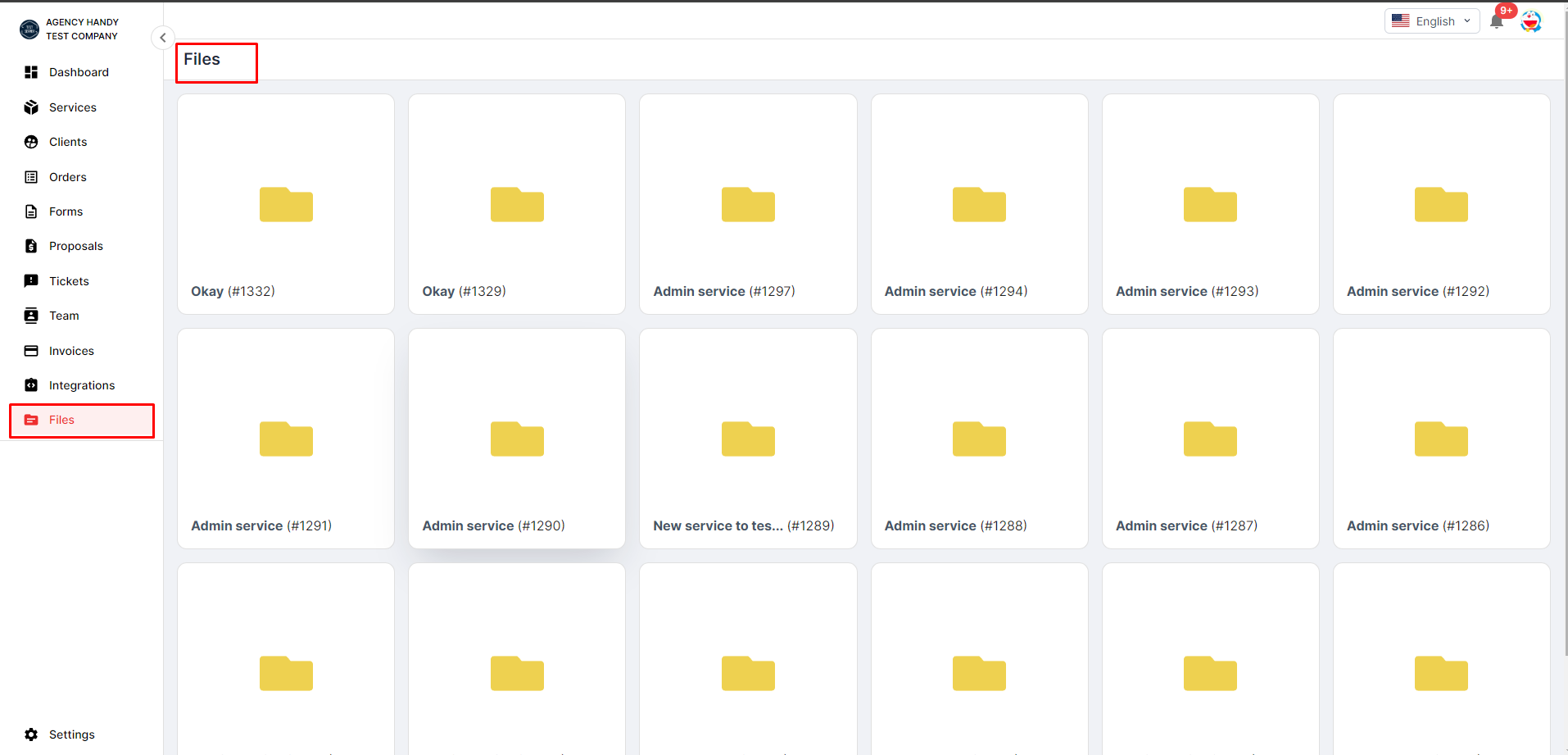
The "File Management for Tasks under Orders" feature in Agency Handy allows users to organize, store efficiently, and access files specifically related to tasks created under orders. This feature streamlines document management by providing a dedicated space within Agency Handy to manage files associated with individual tasks within orders.
### Pre-condition to Use the Feature:
Before using the File Management for Tasks under Orders feature, users must meet the following pre-conditions:
* **Active Client Account:** Users must have an active account on Agency Handy and be logged in to access file management features.
* **Creation of Tasks under Orders:** Users should have created tasks under orders within Agency Handy, as this feature specifically pertains to managing files associated with those tasks.
* **Permission to Manage Files:** Users should have permission to upload, download, edit, and share files within their Agency Handy account.
#### Steps to Use:
* **Navigate to Task Details:** Access the specific task in the order in which you want to manage files.
* **Access File Management Section:** Go to the Task Modal Page. Within the task details, locate the "Attachment" section specifically dedicated to uploading files to that task.
* **Upload Files:** Click the "Upload" button to select files from your local storage and upload them to the task's file management section. You can drag & drop them.
* **Share Files:** Share files associated with the task with team members or stakeholders by providing access permissions or sharing links within the task's file management section.
* **Delete Files:** Remove outdated or unnecessary files from the task's file management section to maintain a clean and organized document repository specific to that task.
---
# Agent Instructions: Querying This Documentation
If you need additional information that is not directly available in this page, you can query the documentation dynamically by asking a question.
Perform an HTTP GET request on the current page URL with the `ask` query parameter:
```
GET https://docs.agencyhandy.com/agencyhandy-user-guide-for-client/3.-managing-dashboard/3.7-files/3.7.1-manage-files-in-order-task.md?ask=
```
The question should be specific, self-contained, and written in natural language.
The response will contain a direct answer to the question and relevant excerpts and sources from the documentation.
Use this mechanism when the answer is not explicitly present in the current page, you need clarification or additional context, or you want to retrieve related documentation sections.