> ## Documentation Index
> Fetch the complete documentation index at: https://docs.agencyhandy.com/llms.txt
> Use this file to discover all available pages before exploring further.
# How to Setup Credit in AgencyHandy
> Offer services through a prepaid credit system: create packages, set conversion rates, and let clients purchase and spend credits on services and invoices.
Credits enable you to offer services through a prepaid system. You create credit packages with a price, set conversion rates that define how many credits one unit of currency buys, and clients purchase credits in advance. When a client orders a service or pays an invoice, AgencyHandy converts the price into credits, deducts the required amount, and records every transaction in a complete audit trail.
## How credits work
The credit system has three components:
* **Credit packages**: bundles of credits that clients purchase (for example, 500 credits for \$50).
* **Conversion rates**: rules that convert a service's currency price into credits (for example, 1 USD = 10 credits).
* **Credit balance**: the credits available to a client to spend on services or invoices.
**Example:** A service costs \$3.51 and the conversion rate is 1 USD = 10 credits.
`$3.51 × 10 = 35.1 credits → rounded up to 36 credits`
AgencyHandy always rounds up to the nearest whole credit.
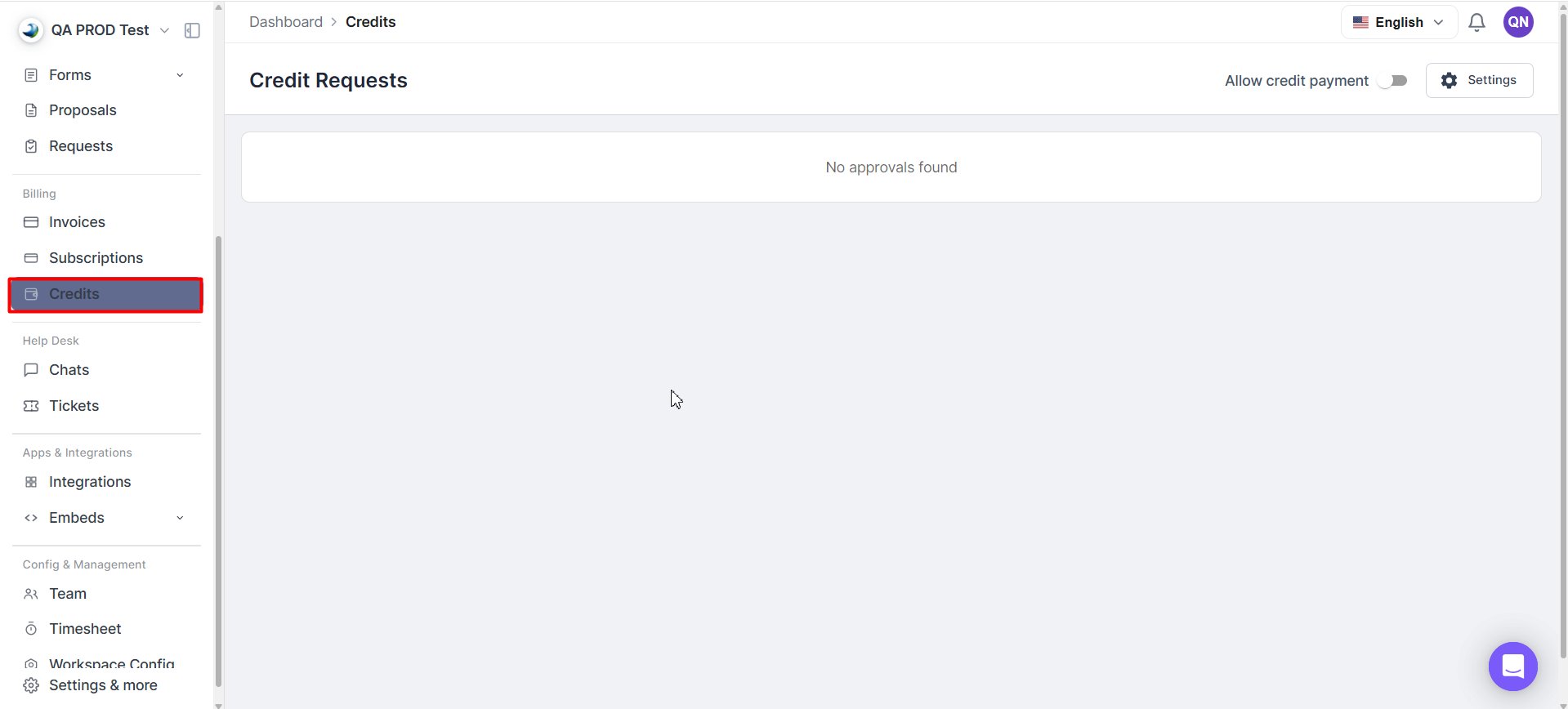
*Credit Page*
## Enable credit payments
Before clients can purchase or use credits, you must turn the feature on.
In the left sidebar, go to **Credits**.
Enable the **Allow Credit Payment** toggle.
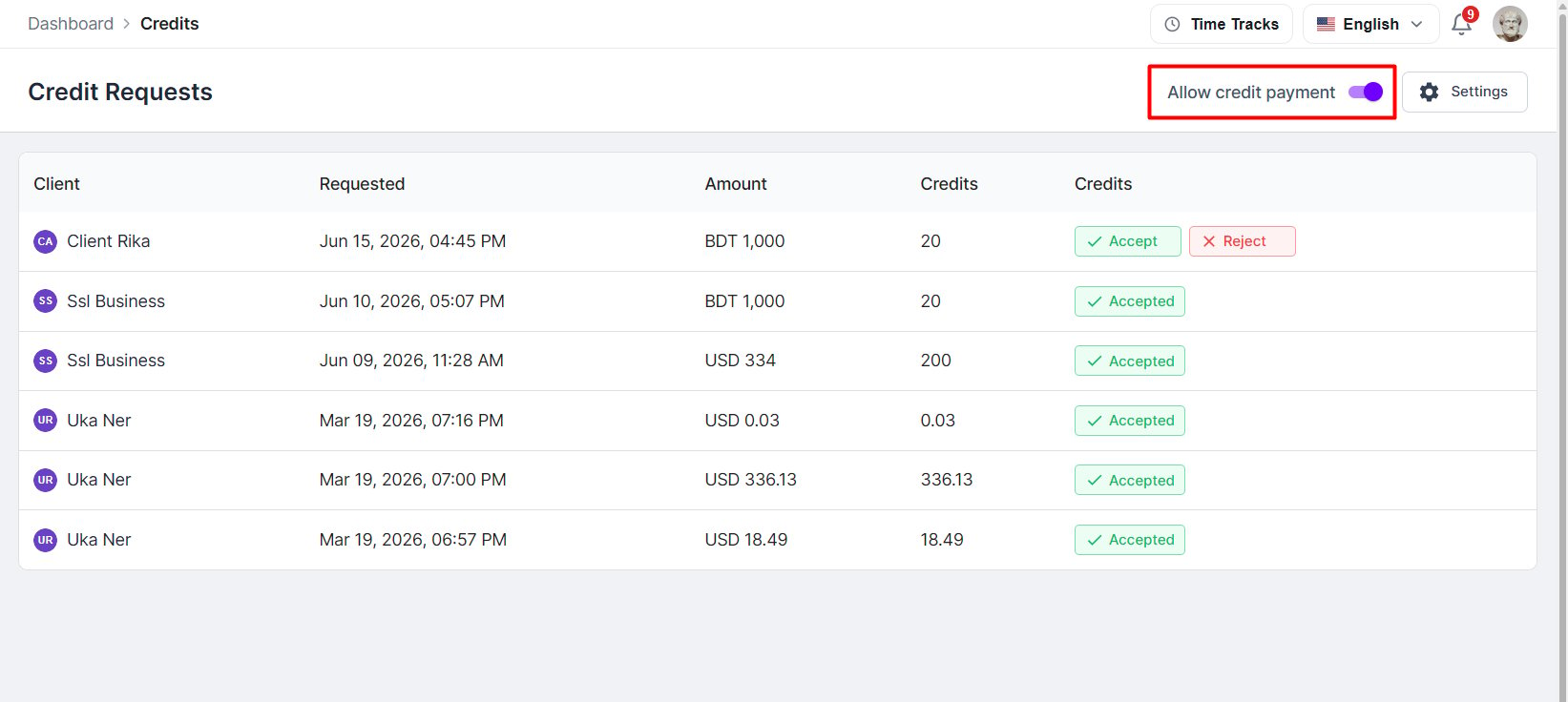
*Toggle to turn on credit payment*
**When enabled**, clients can:
* See their credit balance widget in the client portal.
* Access the Credits page and purchase packages.
* Submit credit requests.
* Use **Buy with Credit** during service checkout.
* Use **Pay with Credit** on invoices.
**When disabled**, the credit widget and all credit options are hidden from the client portal. Existing credit balances are preserved, and clients can still use other payment methods.
## Create credit packages
Credit packages are what clients purchase to load credits onto their account.
Navigate to **Credits → Settings → Credit Packages**.
Click **+ Package**.
Enter a package name, the number of credits included, the currency, and the price.
Click **Create**.
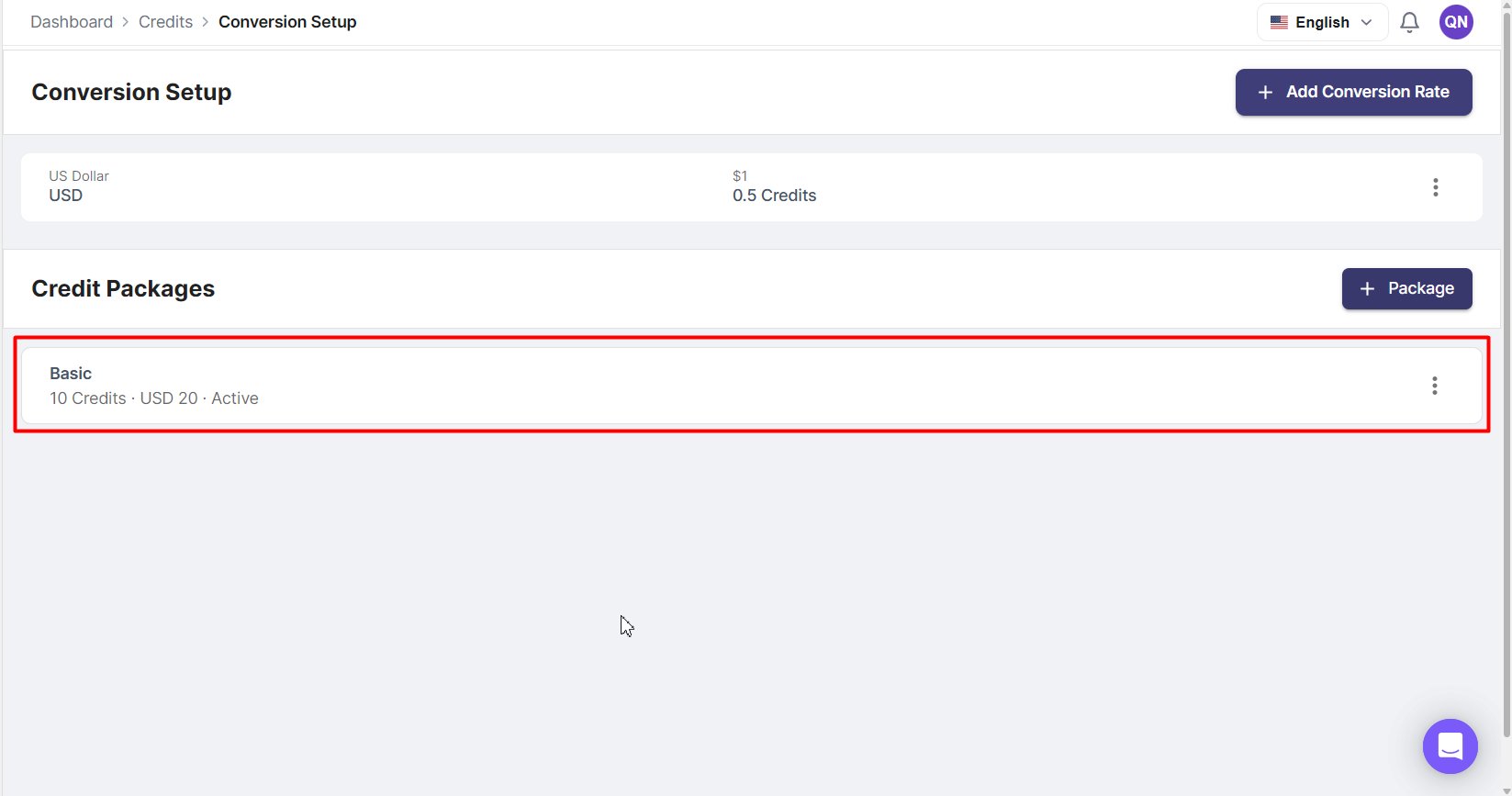
*Credit Package List View*
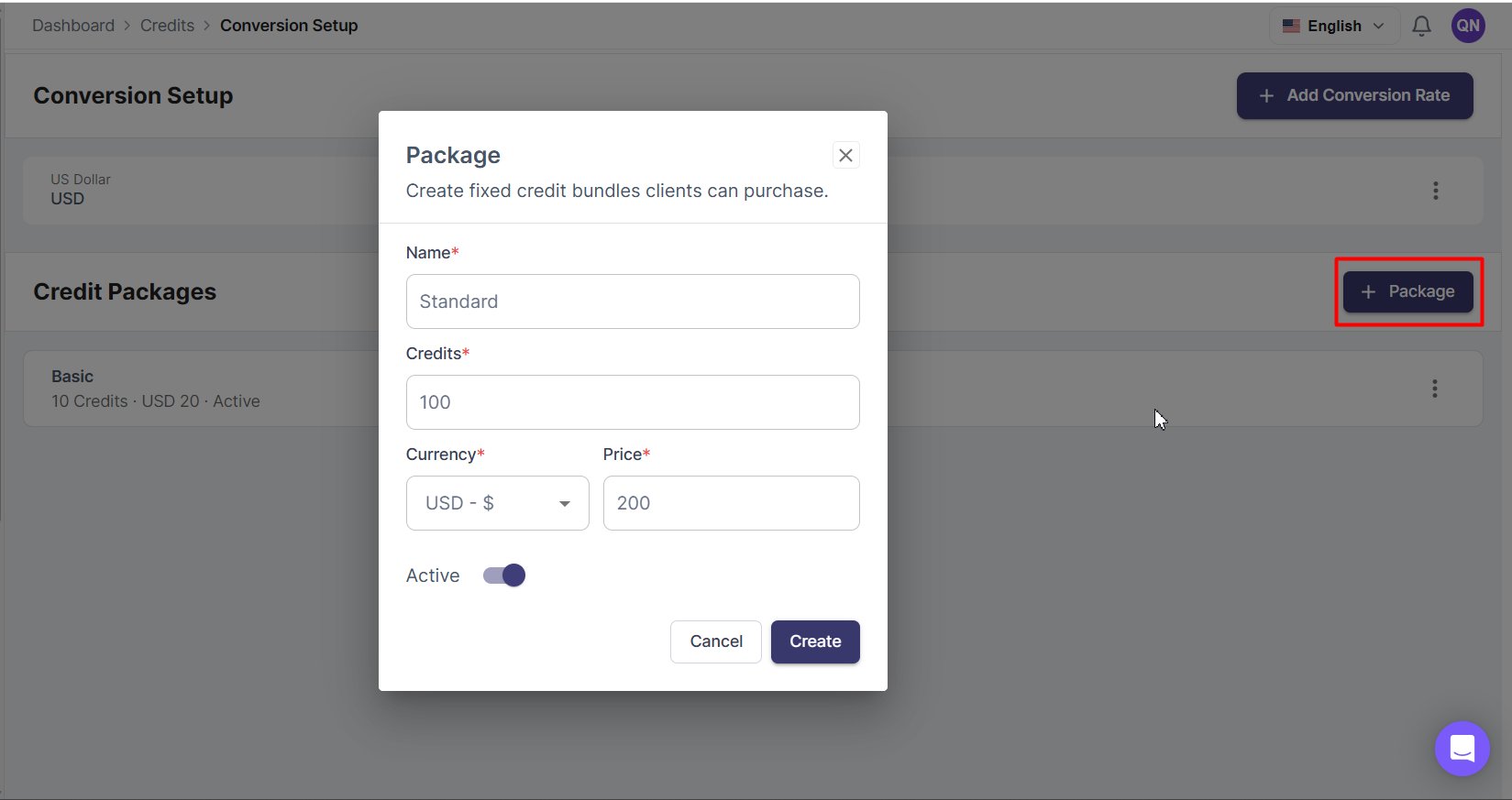
*Create Credit Package*
## Manage conversion rates
Conversion rates determine how many credits are required for a service based on its currency price. You can set a different rate per currency.
Navigate to **Credits → Settings → Conversion Rates**.
Click **+ Add Conversion Rate**.
Select a currency and enter the number of credits equivalent to one unit of that currency.
Click **Save**.
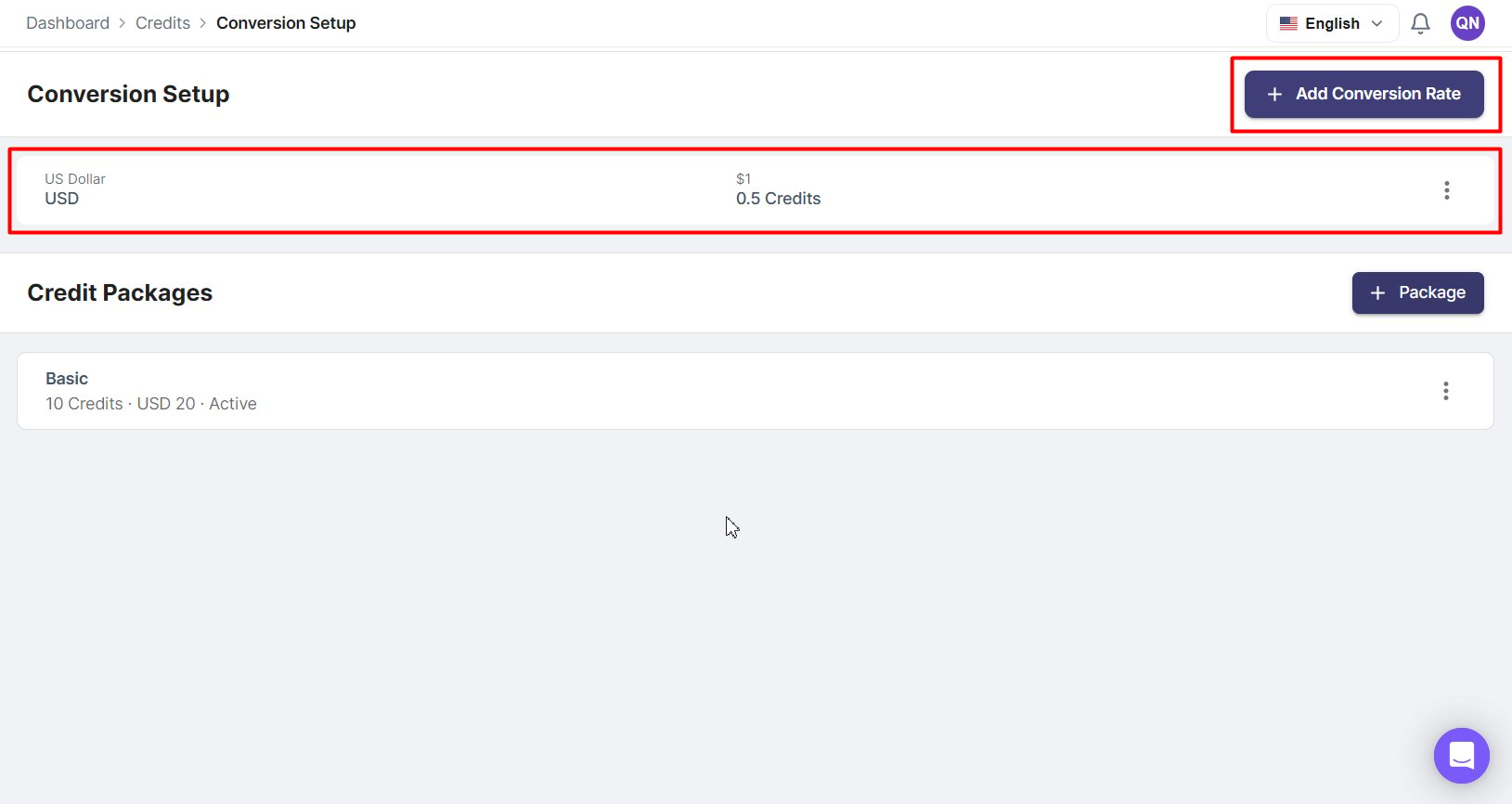
*Conversion List Page*
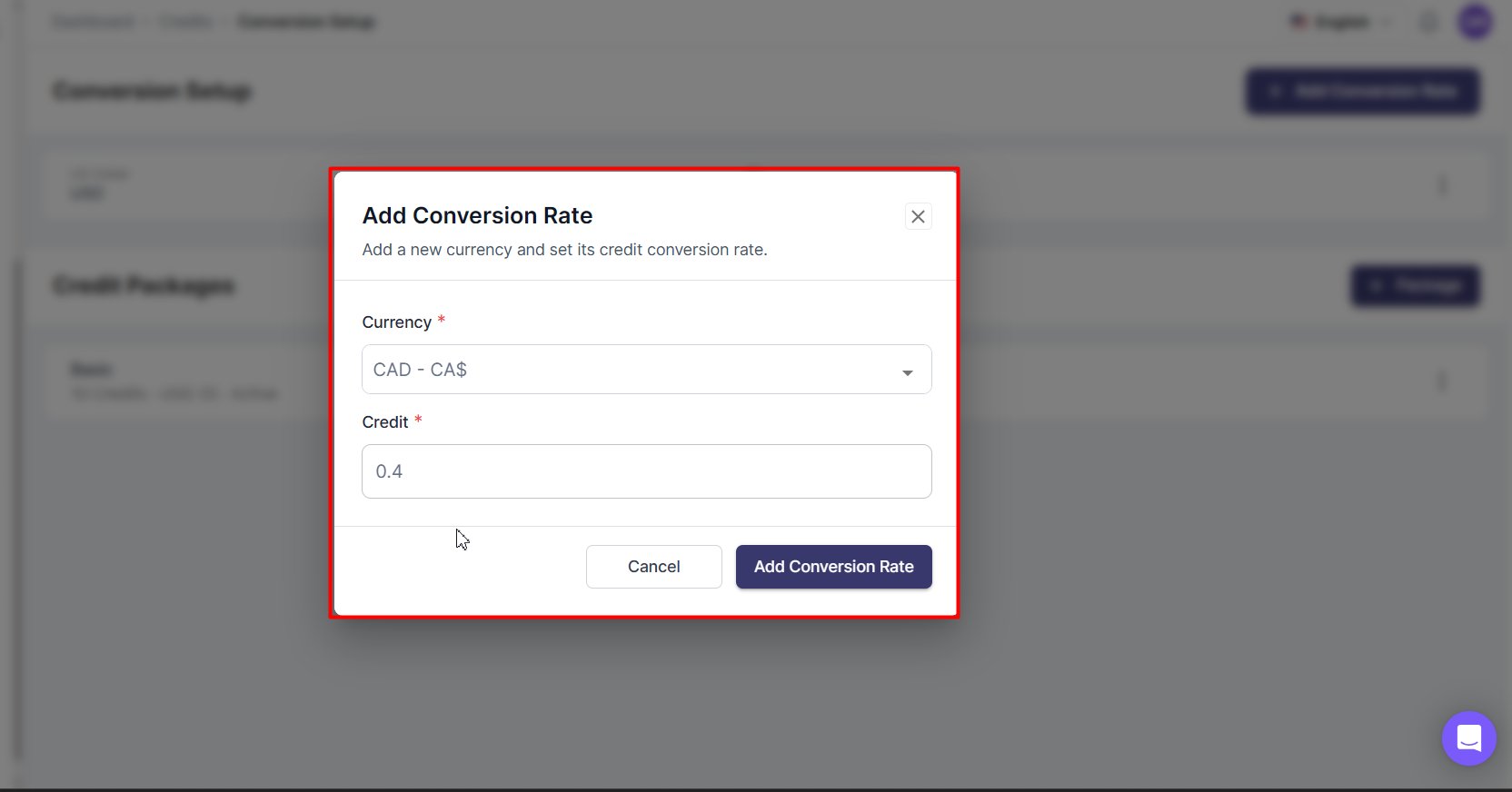
*Add Conversion Rate Form*
**Example rates:**
| Currency | Rate |
| -------- | ------------------ |
| USD | 1 USD = 10 credits |
| EUR | 1 EUR = 9 credits |
| GBP | 1 GBP = 12 credits |
Only one active conversion rate can exist per currency at any given time.
## Automatic vs manual credit purchases
How credits are added to a client's account depends on the payment method used.
**Automatic** (no approval needed):
* Stripe
* PayPal
Credits are added immediately after a successful payment.
**Manual** (requires agency approval):
* Bank Transfer
* Cryptocurrency
When a client pays via a manual method, a credit request is created. You must review and approve it before credits are added.
## Manage credit requests
Navigate to **Billing → Credits**.
Review the client name, payment amount, and number of credits requested.
Click **Accept** to add the credits, or **Reject** to decline.
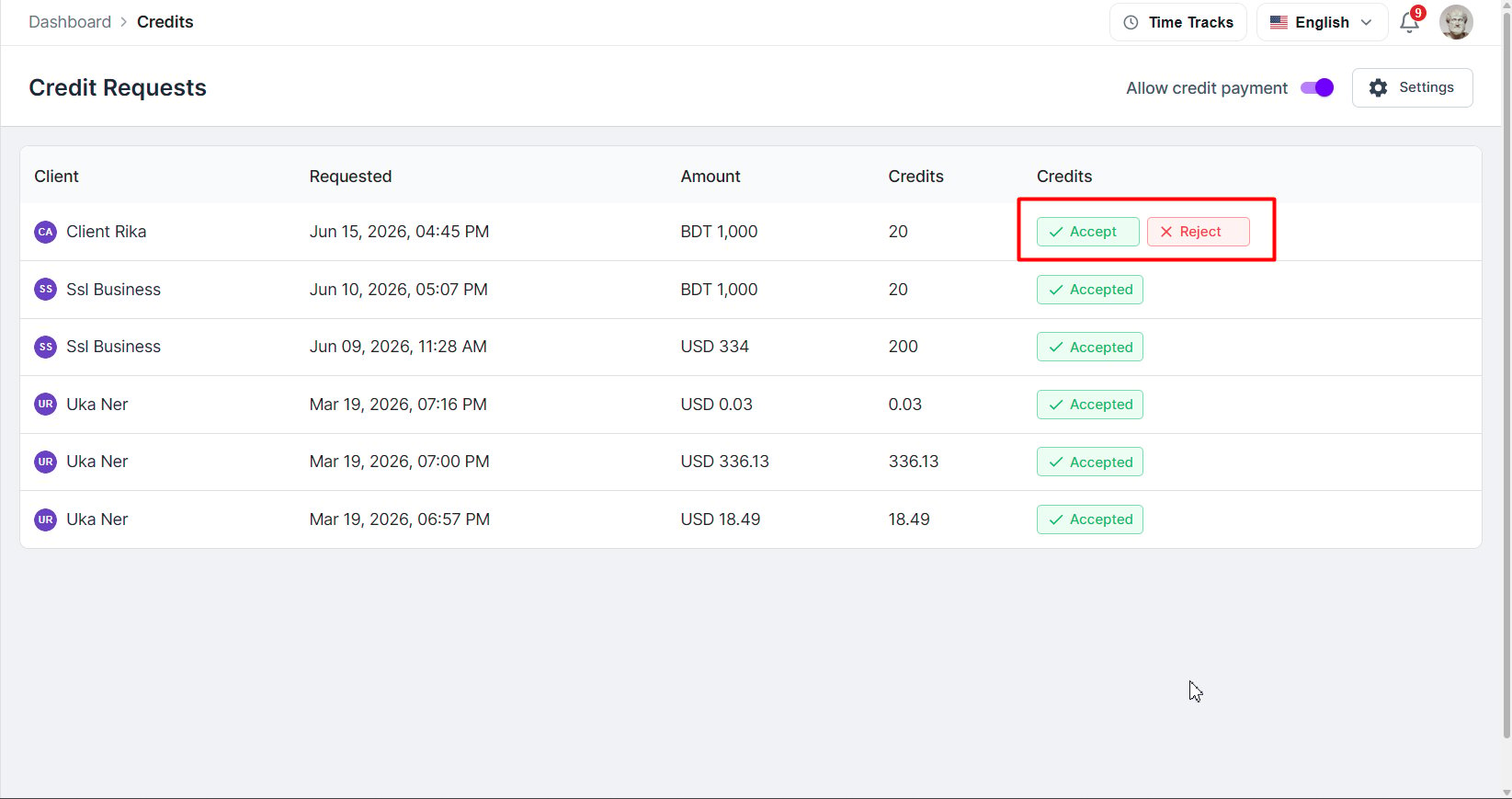
*Credit Requests*
**Request statuses:**
* **Pending**: submitted and awaiting review.
* **Accepted**: approved; credits have been added to the client's balance.
* **Rejected**: declined; no credits were added.
## View client credits
Navigate to **Clients** and click on a client's name.
Select the **Credits** tab.
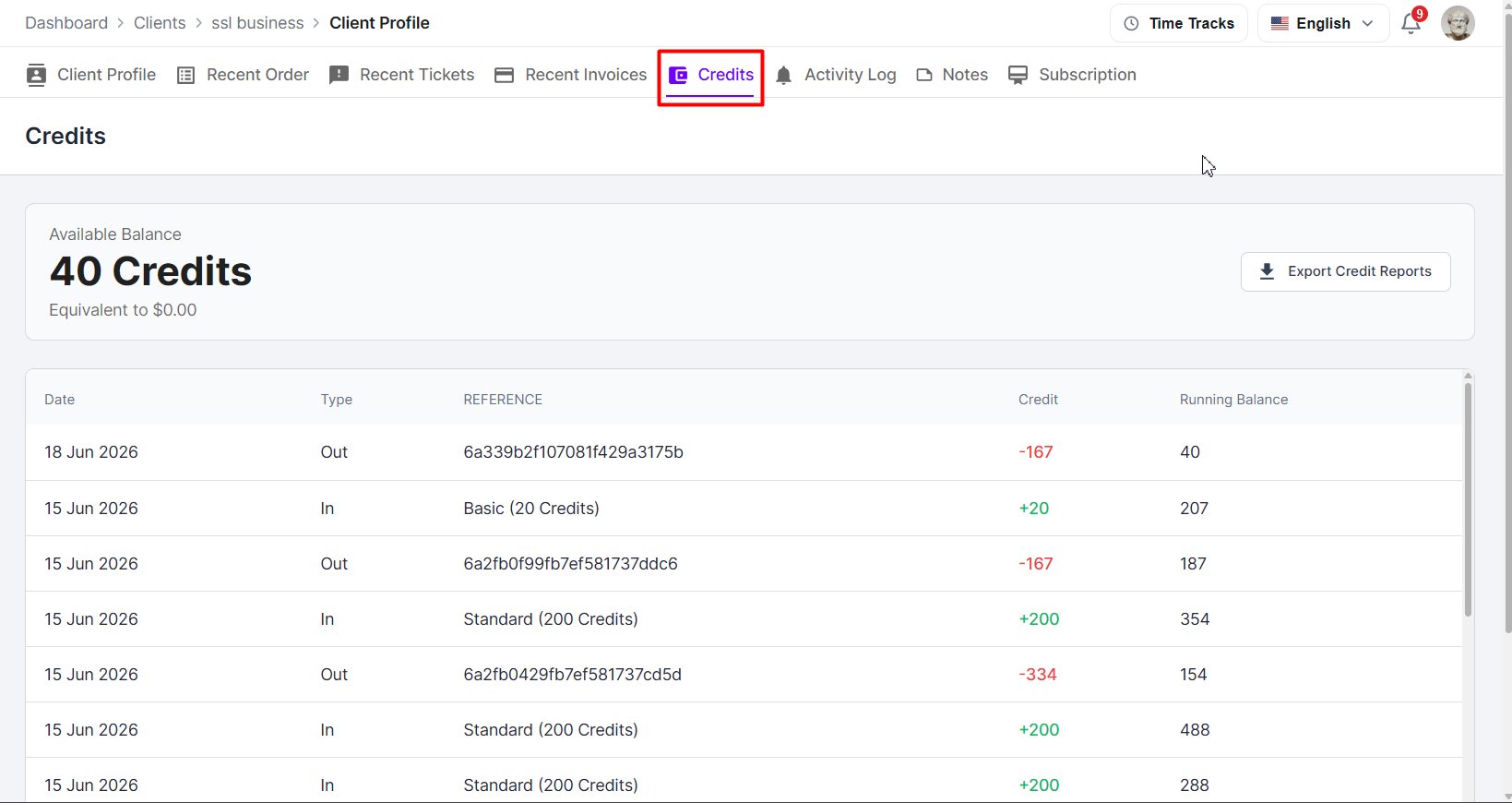
*Viewing Client Credit*
The Credits tab shows the client's available balance, full transaction history, running balance, and transaction references.
## Understand credit transactions
Every credit activity is recorded in the client's transaction history.
**In**: credits added to the account:
* Credit package purchase
* Approved credit request
**Out**: credits deducted from the account:
* Service purchased using credits
* Invoice paid using credits
Each transaction shows the date, type, reference, credit amount, and running balance, providing a complete audit trail.
## Frequently Asked Questions
No. Clients cannot purchase credits while the **Allow Credit Payment** toggle is disabled.
Existing balances remain unchanged. Clients simply cannot access or use the Credits feature until it is enabled again.
Yes. Credits purchased through Stripe and PayPal are added automatically after successful payment.
Yes. These payment methods create a credit request that must be reviewed and approved by the agency.
Yes. Agencies can approve or reject any pending credit request.
Yes. Agencies can review a client's balance and transaction history from the **Credits** tab within the client profile.
**In** indicates credits added to the client's account.
**Out** indicates credits deducted from the client's account.
The agency may have disabled credit payments, or the client may not have sufficient credits available.
The agency may have disabled credit payments, or the client may not have sufficient credits available to cover the invoice amount.