

How credits work
Credits are purchased in advance and added to your account balance. When you purchase a service or pay an invoice using credits:- The required credits are deducted automatically.
- Your balance is updated instantly.
- The transaction is recorded in your credit history.
Viewing your credit balance
When credit payments are enabled by the agency, your available credit balance is displayed in the top navigation bar.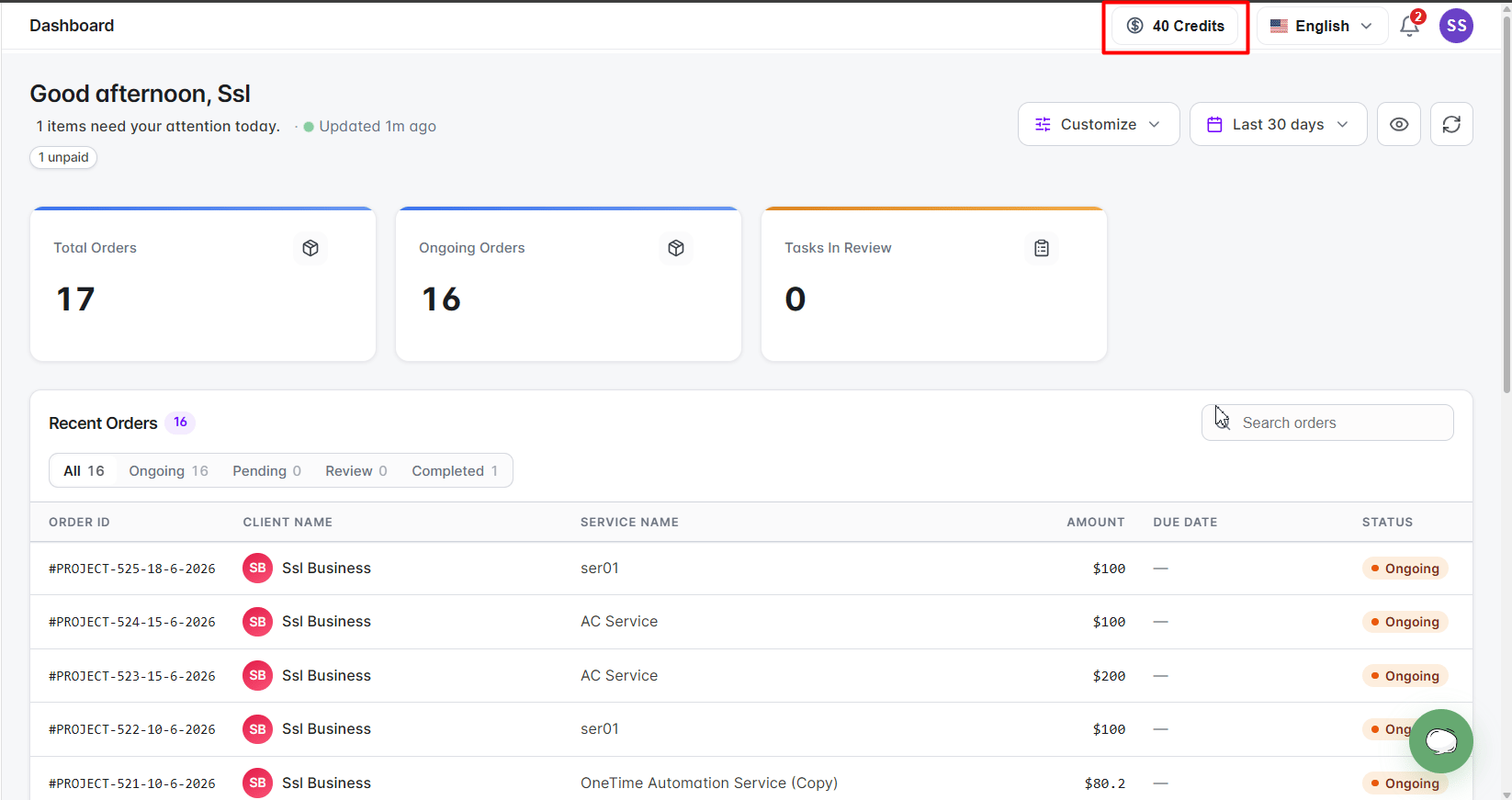
Credit balance widget displayed in the client portal header
Accessing the Credits page
Click the credit balance widget to open the Credits page. The Credits page provides:- Available credit balance
- Transaction history
- Running balance
- Credit requests
- Buy Credits option
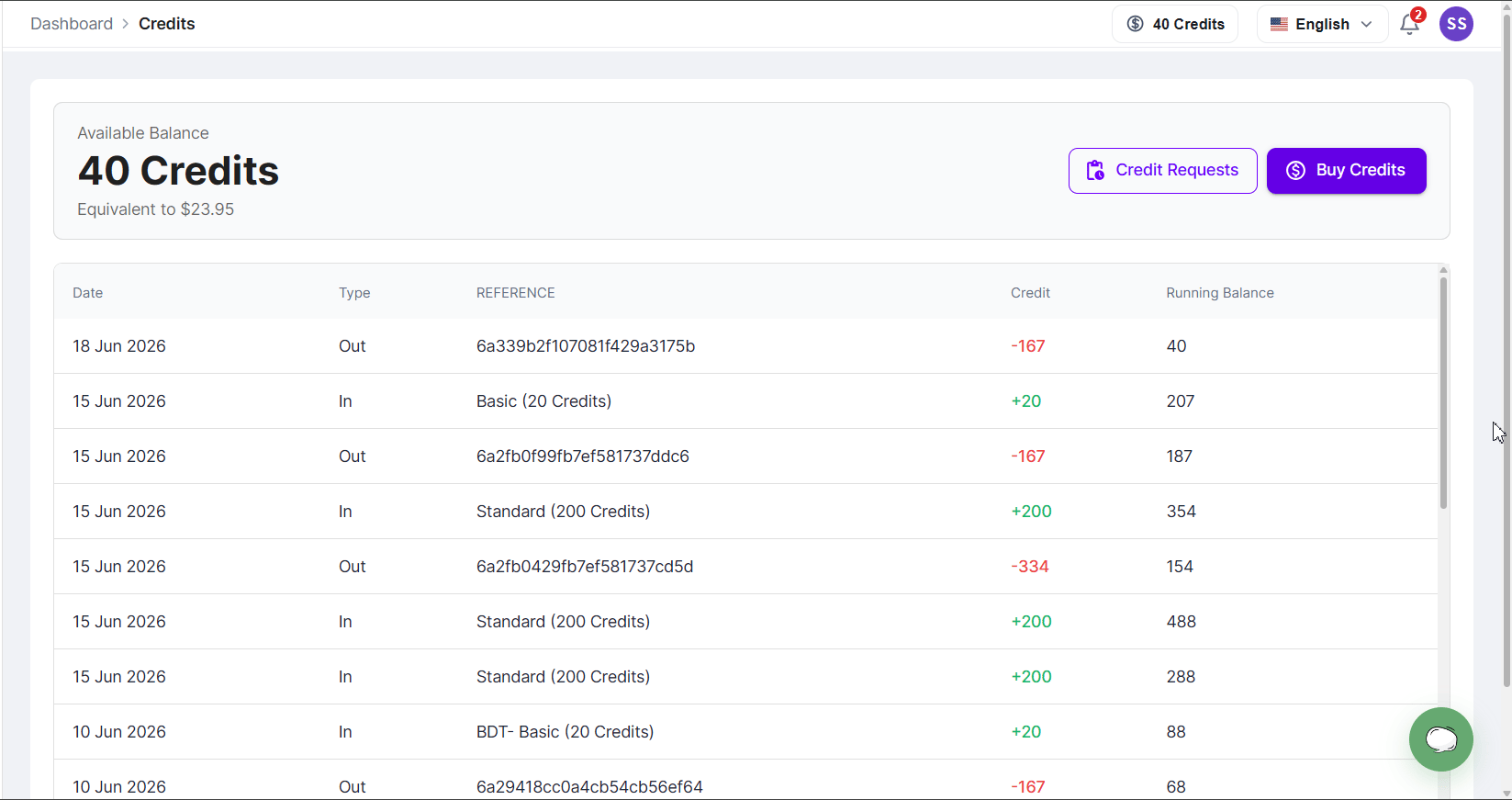
Credits dashboard page
Purchasing credits
You can purchase additional credits at any time using the Buy Credits button.Open the Credits page
Click Buy Credits
Select a package
Choose a payment method
Complete payment
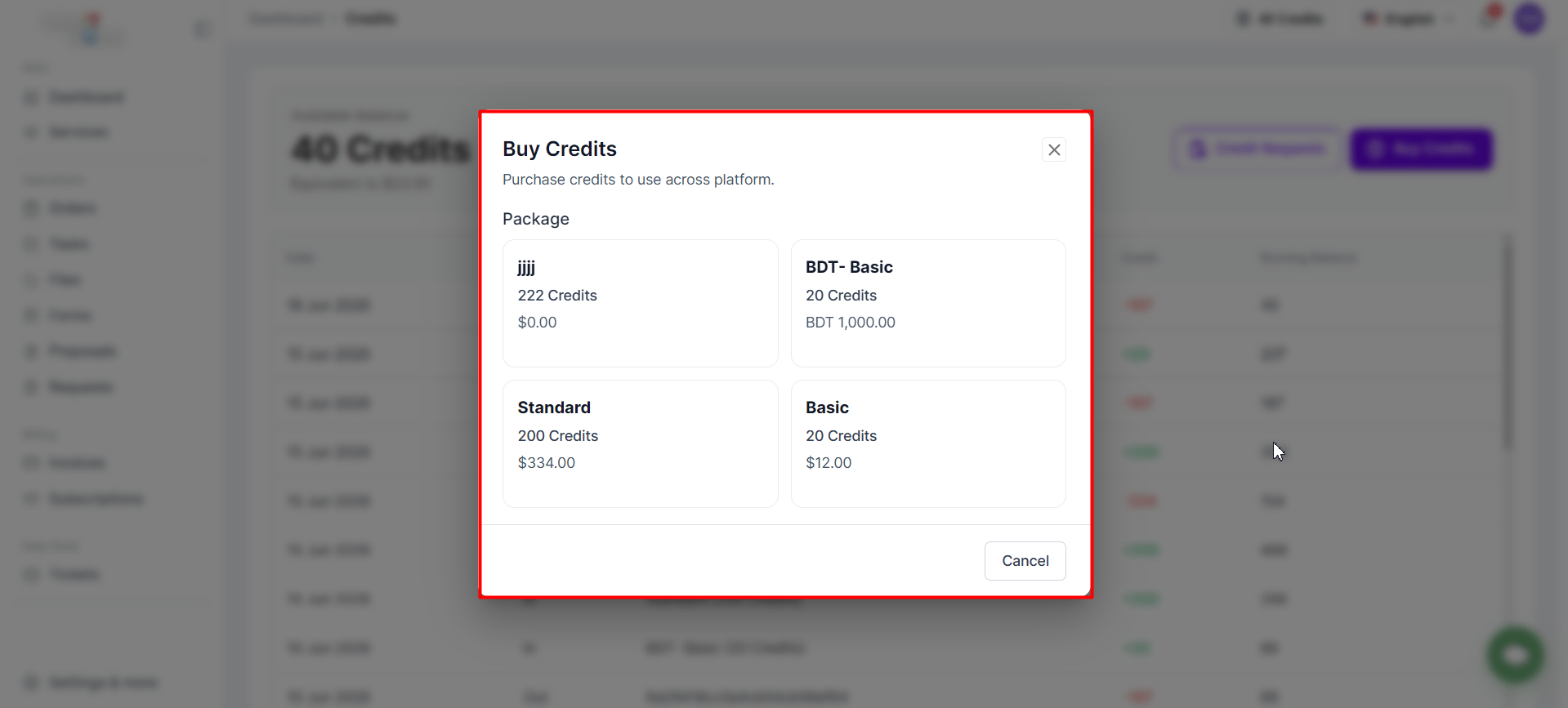
Buy Credits page showing available credit packages
Credit purchase methods
Different payment methods process credits differently.Instant credit purchases
Credits are added automatically after successful payment when using:- Stripe
- PayPal
Manual credit purchases
Credits purchased using Bank Transfer or Cryptocurrency require agency approval before being added to your account. After submitting payment:- A credit request is created.
- The request is sent to the agency for review.
- Credits are added only after the agency approves.
Credit requests
Credit Requests allow you to track purchases that require agency approval.Open the Credits page
View Credit Requests
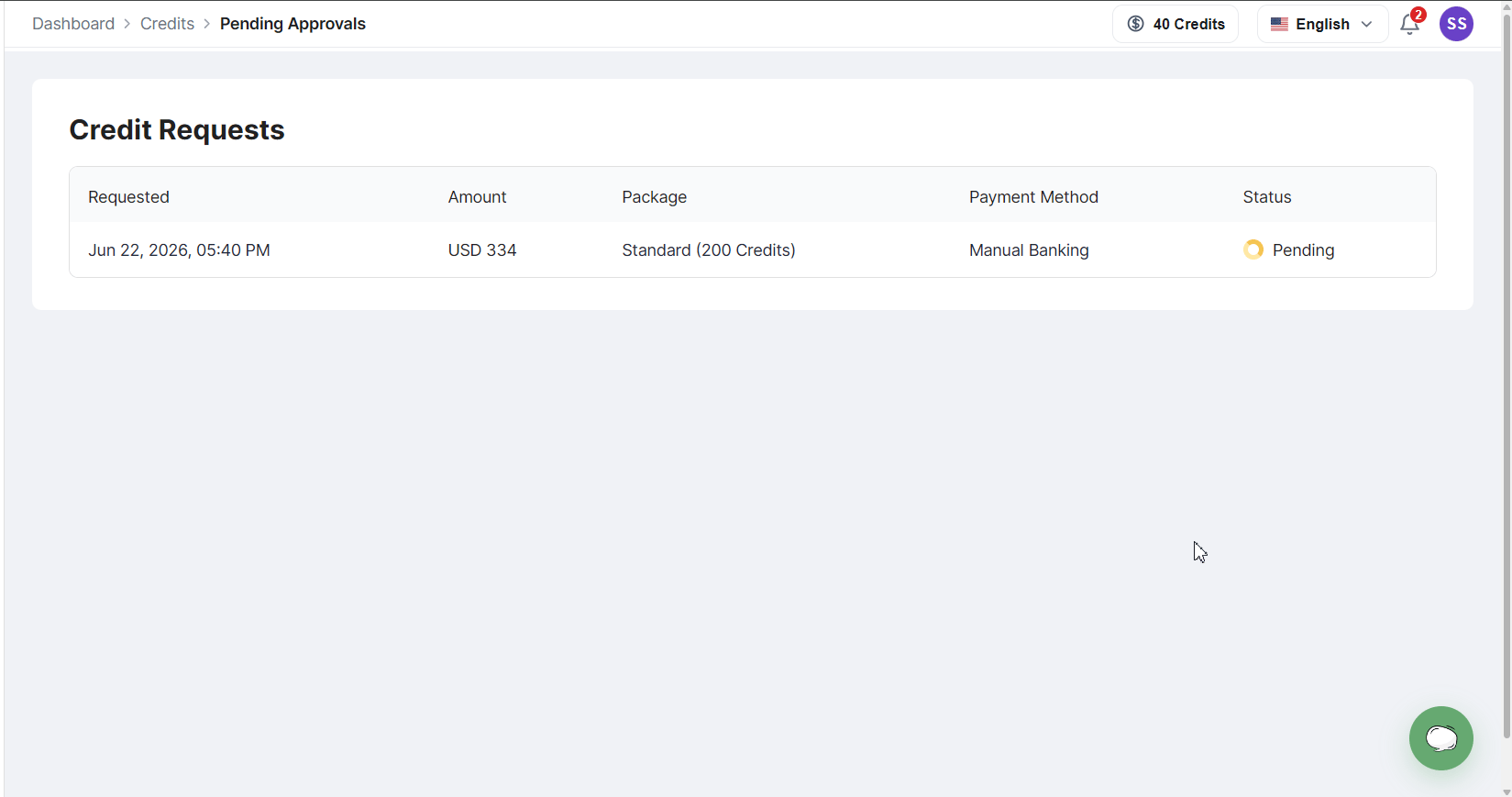
Credit Requests page
Request statuses:- Pending: your request has been submitted and is waiting for agency review.
- Accepted: the request has been approved and credits have been added to your balance.
- Rejected: the request has been declined and no credits have been added.
Paying for services with credits
When credit payments are enabled and you have sufficient credits, you can purchase services using your credit balance.Open the service
Proceed to checkout
Select Buy with Credit
Complete the purchase
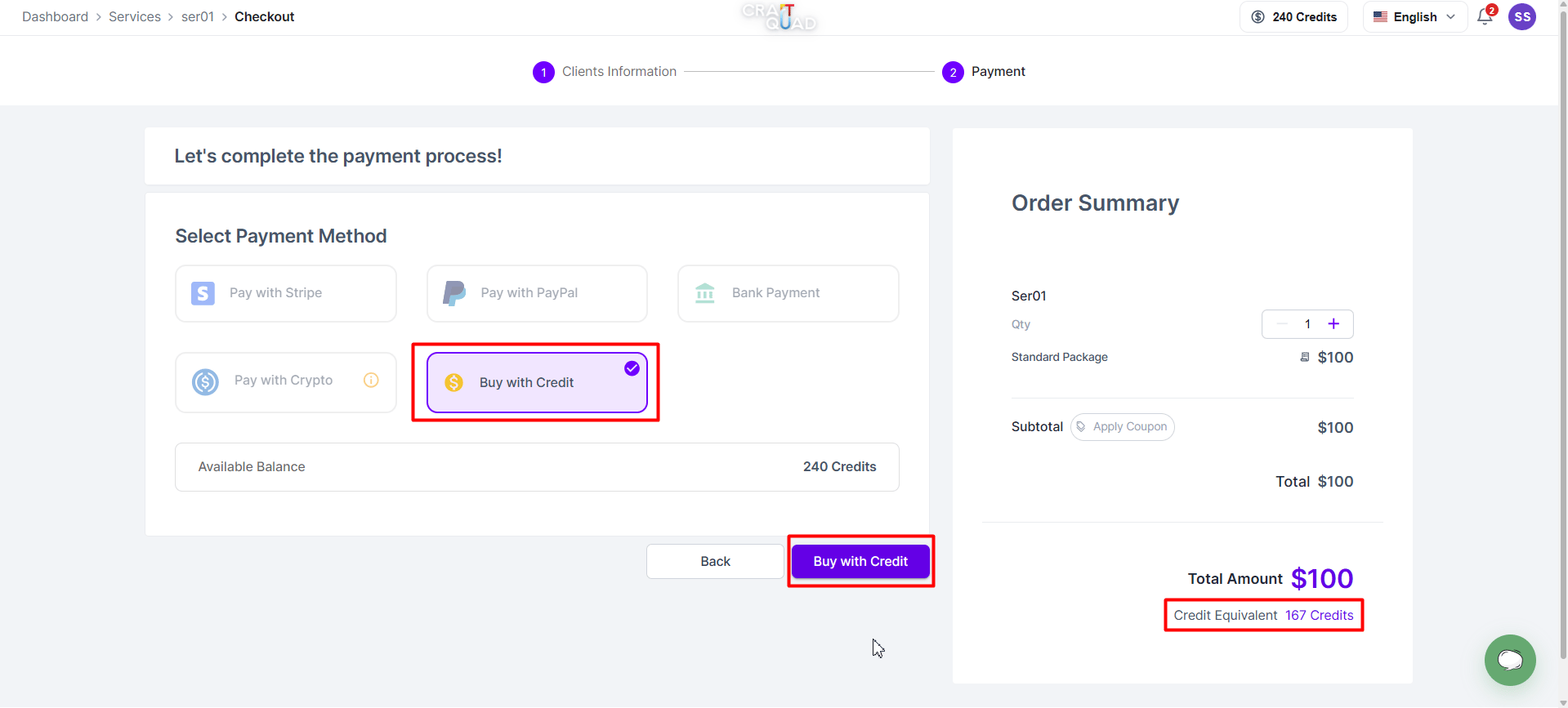
Service checkout page showing the Buy with Credit option
Once the purchase is completed, credits are deducted automatically, your balance is updated instantly, and the transaction appears in your credit history. When Buy with Credit is not available: The Buy with Credit option will not appear if:- The agency has disabled credit payments.
- You do not have enough credits.
- The service is not eligible for credit payments.
Paying invoices with credits
You can also use credits to pay outstanding invoices.Open the invoice
Click Pay Invoice
Select Pay with Credit
Confirm payment

Invoice payment page showing the Pay with Credit option
Once payment is completed, credits are deducted automatically, the invoice is marked as paid, your balance is updated, and the transaction appears in your credit history. When Pay with Credit is not available: The Pay with Credit option will not appear if:- The agency has disabled credit payments.
- You do not have sufficient credits.
- The invoice amount exceeds your available balance.
Understanding your credit history
All credit activity is recorded on your Credits page. Each transaction includes:- Date
- Transaction type
- Reference
- Credit amount
- Running balance
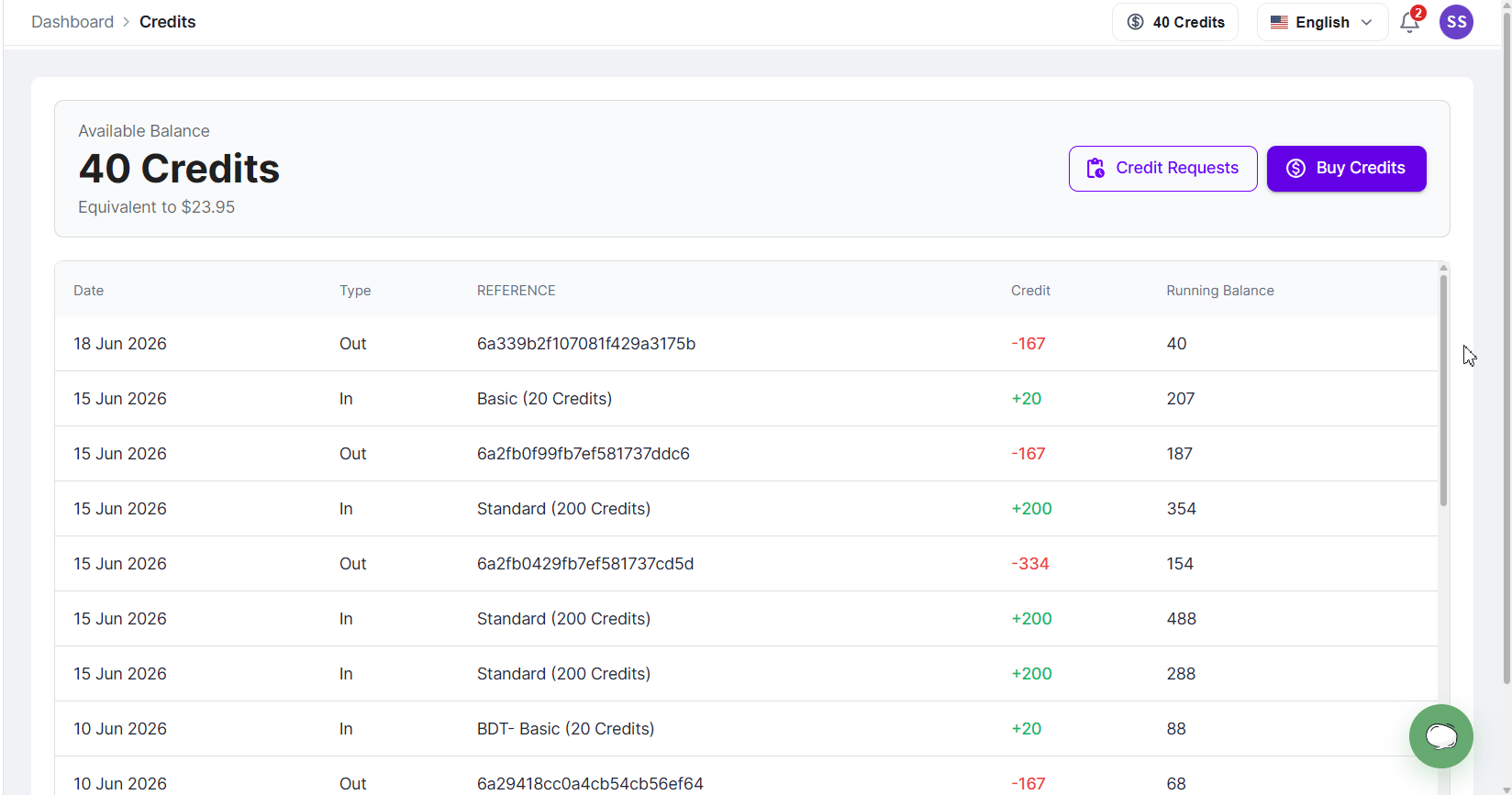
Credit transaction history table
Transaction types:- In: credits added to your account (credit package purchases, approved credit requests).
- Out: credits deducted from your account (service purchases, invoice payments).
Frequently Asked Questions
Why can't I see the Credits widget?
Why can't I see the Credits widget?
Why can't I purchase credits?
Why can't I purchase credits?
Why don't I see the Buy with Credit option?
Why don't I see the Buy with Credit option?
Why don't I see the Pay with Credit option on an invoice?
Why don't I see the Pay with Credit option on an invoice?
When are credits added to my account?
When are credits added to my account?
Can I view all my credit transactions?
Can I view all my credit transactions?
What do In and Out transaction types mean?
What do In and Out transaction types mean?
What happens if my credit request is rejected?
What happens if my credit request is rejected?
Can I use credits for both services and invoices?
Can I use credits for both services and invoices?