

Client contacts
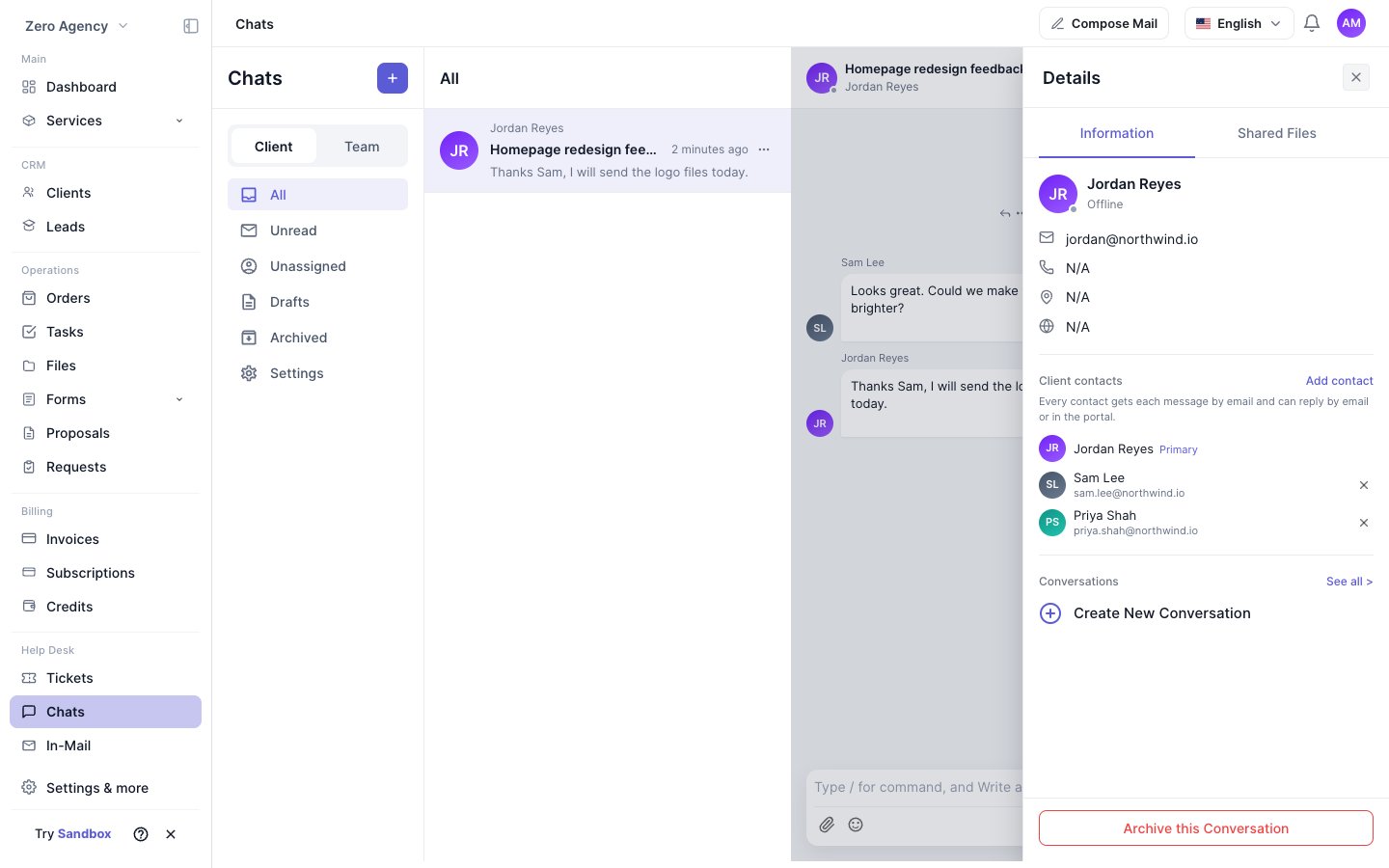
Open a client conversation and its Details panel. The Client contacts section lists everyone on the client side of the thread:- The primary client, marked Primary.
- Each contact you added, with their email address.
Add contacts
1
Open the dialog
In Client contacts, click Add contact.
2
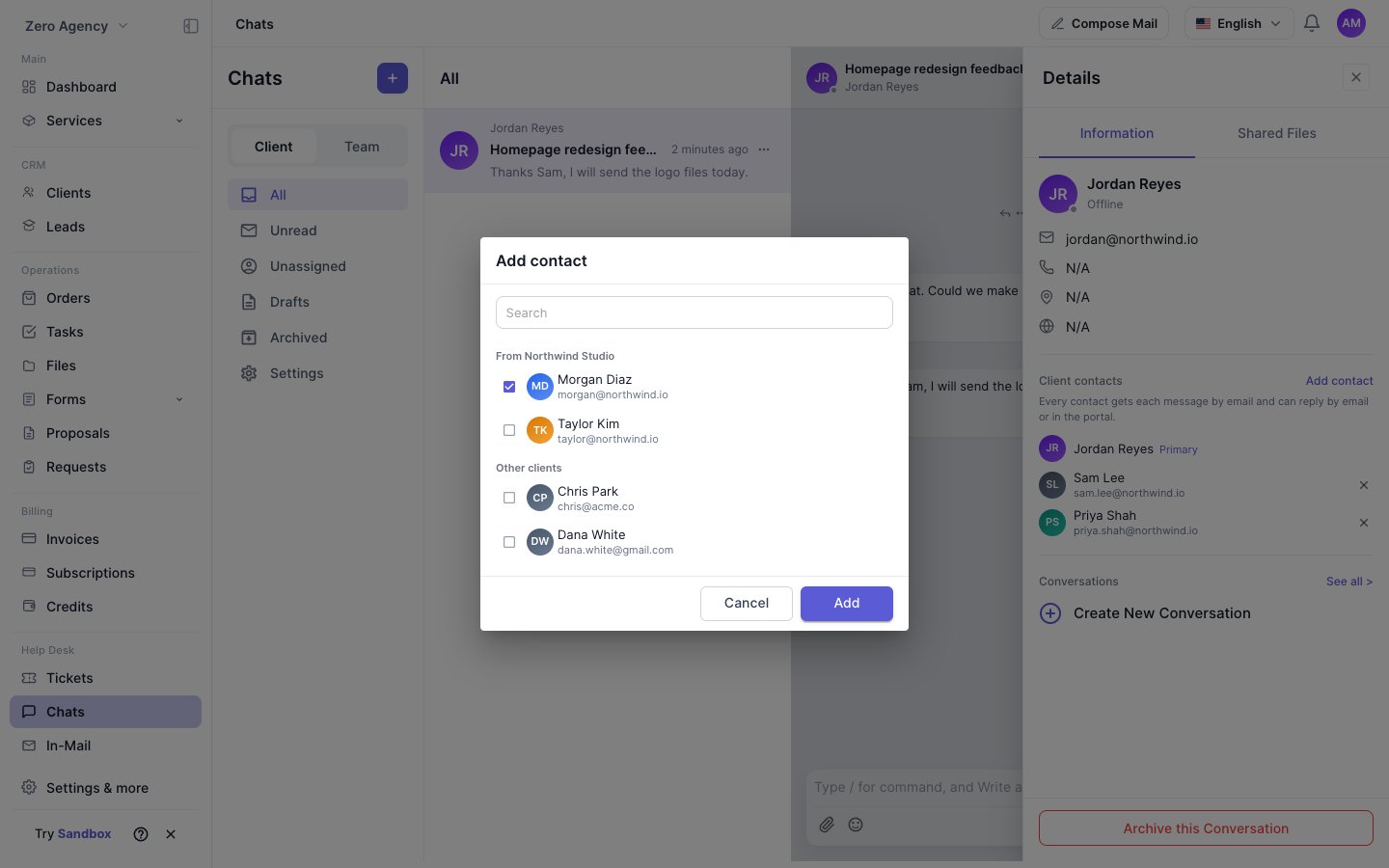
Find the people to add
Search by name or email. The list shows people from the primary client’s company first, under From and the company name. Other clients of your workspace follow under Other clients. People already on the thread don’t appear.
3
Add them
Select one or more people and click Add.
Remove a contact
Click the × next to a contact and confirm. The contact loses access to the conversation right away. You can’t remove the primary client.Limits
- A conversation can have up to 20 contacts.
- A contact must already be a client in the same workspace. To add someone new, first create them as a client in Clients.
Who can manage contacts
How contacts take part
- Email notifications. Every contact gets each new message by email.
- Reply by email or in the portal. A contact can answer the email or open the chat in their client portal. An email reply appears in the same conversation, posted as that contact.
- Unknown senders are ignored. Replies from an email address that isn’t on the thread are not posted.
- Shared unread count. Everyone on the client side of the thread shares one unread count.
Privacy
- A client only sees the conversations they’re on. Adding someone to one conversation doesn’t give them access to the client’s other conversations.
- Clients don’t see each other’s email addresses. In the portal, other contacts appear only by name and avatar.